Networks B04
Persistent SSH Tunneling

In this dispatch 5 sections
Imagine the situation where we need to access services behind NAT/firewall. How can we achieve it?
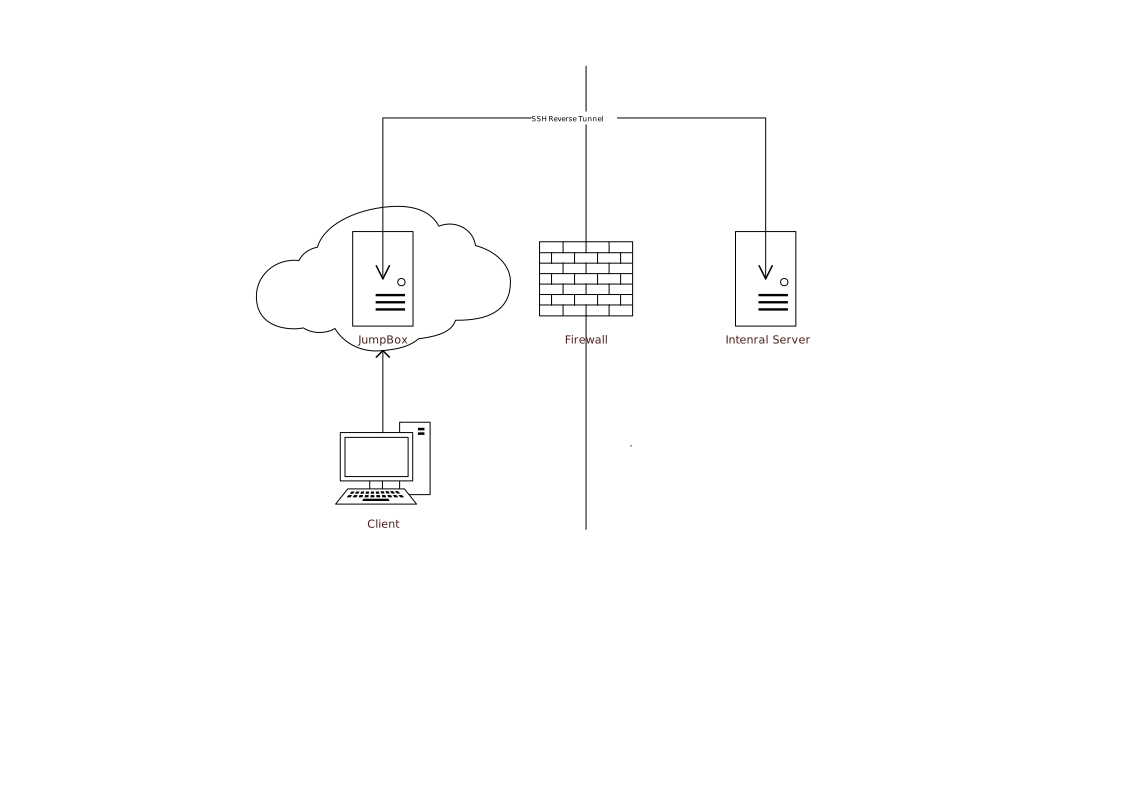
The answer is reverse SSH tunneling.
Reverse SSH is a technique through which you can access systems that are behind a firewall from the outside world. In that case, the server behind NAT/firewall establishes an SSH connection and uses port forwarding to make sure that you can SSH back to the server machine.
In the diagram above, the internal server establishes an SSH connection to the jumpbox and then opens a listening port on the jumpbox. All traffic to this listening port will be forwarded to a specified port on the internal server side.
By using reverse SSH tunneling, we can publish an internal listening port to the internet. Here are the steps to achieve it.
0 Prerequisite
All we need is a VM with a public IP address to serve as the jumpbox, and the SSH service needs to be installed. In Azure, we can simply deploy an Ubuntu 16.04 VM.
1 Configure AutoSSH at Internal Server Side
From the internal server we want to publish service, install AutoSSH, refer to AutoSSH
autossh is a program to start a copy of ssh and monitor it, restarting it as necessary should it die or stop passing traffic.
Assuming it is an Ubuntu 16.04 server, the commands used to install AutoSSH are:
sudo -i
apt update
apt install autossh
Once AutoSSH is installed, create a service configuration to configure AutoSSH as a service.
vi /lib/systemd/system/autossh.serviceCopy/paste the content below into autossh.service, then save.
[Unit]
Description=autossh
Wants=network-online.target
After=network-online.target

[Service]
Type=simple
User=<YOUR_USER_NAME>
EnvironmentFile=/etc/default/autossh
ExecStart=
ExecStart=/usr/bin/autossh $SSH_OPTIONS
Restart=always
RestartSec=60

[Install]
WantedBy=multi-user.target
Now, we also need to create a configuration at /etc/default/autossh.
vi /etc/default/autosshCopy/paste the content below into the file, then save.
AUTOSSH_POLL=60
AUTOSSH_FIRST_POLL=30
AUTOSSH_GATETIME=0
AUTOSSH_PORT=22000
SSH_OPTIONS="-N -R JUMPBOX_LISTEN_PORT:localhost:INTERNAL_SERVER_PORT JUMPBOX_FQDN -i /home/YOUR_USER_NAME/.ssh/id_rsa"JUMPBOX_LISTEN_PORT: A listening port will be created at jumpbox
INTERNAL_SERVER_PORT: Internal server service’s port
JUMPBOX_FQDN: Jumpbox’s FQDN or IP address
Before enabling and starting the AutoSSH service, make sure YOUR_USER_NAME has:
- A private key to connect to the jumpbox. The private key should be stored at ~/.ssh/id_rsa.
- The jumpbox server key fingerprint stored and the ability to SSH into the jumpbox. Simply run “ssh JUMPBOX_FQDN” and type Yes to store the key fingerprint at ~/.ssh/known_hosts.
Enable and start AutoSSH
systemctl daemon-reload
systemctl enable autossh
systemctl start autossh
2 Configure JumpBox
By default, reverse SSH tunneling only creates a listening port on the loopback interface, which means the listening port is on 127.0.0.1. If you run netstat -lptn, you will see:
Active Internet connections (only servers)
Proto Recv-Q Send-Q Local Address           Foreign Address         State       PID/Program name
tcp        0      0 127.0.0.1:<PORT>       0.0.0.0:*               LISTEN      106872/sshd: <YOUR_USER_NAME>
We can use iptables to forward the physical interface’s network to the loopback interface. To do that:
- Allow the port proxy to route using loopback addresses
sudo -i
echo "net.ipv4.conf.all.route_localnet=1" >> /etc/sysctl.conf
sysctl -p /etc/sysctl.conf- Configure iptables
iptables -t nat -I PREROUTING -p tcp --dport JUMPBOX_LISTEN_PORT -j DNAT --to-destination 127.0.0.1:JUMPBOX_LISTEN_PORT
# Save iptables rules persistently
apt install iptables-persistent
iptables-save > /etc/iptables/rules.v4
3 Configure Azure NSG to Allow Inbound Traffic to JUMPBOX_LISTEN_PORT
From the Azure portal, choose the JumpBox VM, then Networking -> Add inbound port. Add an inbound security rule to allow traffic to JUMPBOX_LISTEN_PORT.
4 Connect to Internal Server
Now you are able to access the internal server service port through the JumpBox server. For example, if the published port is SSH, you can access it with the command below:
ssh YOUR_USER_NAME@JUMPBOX_FQDN:JUMPBOX_LISTEN_PORT