Field Notes D08
Azure Custom Roles - Cook Guide

This article provides a workflow to help you customize roles to suit your needs.
Azure role-based access control (Azure RBAC) has several Azure built-in roles that you can assign to users, groups, service principals, and managed identities. RBAC ensures the proper segregation of administration between the different subscriptions, workloads and services. Role assignments are the way you control access to Azure resources. If the built-in roles don’t meet the specific needs of your organization, you can create your own Azure custom roles.
When planning custom role mapping, this toolkit can be used as a reference. It includes a set of reference worksheets and scripts to assist in defining and creating your own custom RBAC role(s).
The rest of this article focuses on how to define your own custom role. The role customization workflow looks like this:
- Each Azure resource has an “Export template” action. Use it to understand where the settings are applied, then use the resource type and match it against the ARM provider operations below.
- Use the article Azure resource provider operations, which provides a complete list of all operations available from Azure Resource Manager. These operations can be used in Azure custom roles to provide granular access control to Azure resources.
- If you want to get all operations that target a resource, you can run a PowerShell command similar to
Get-AzProviderOperation "Microsoft.Web/*" | FT Operation, Description -AutoSize. Replace “Microsoft.Web” with the Azure resource provider whose operations you want to list. - Clone an existing role for customization. If certain operations should not be allowed, add those operations to
NotActionsor remove them fromActions. - Assign the customized role to users/groups whose access you want to restrict.
NotActions subtracts permissions from this role; it is not a deny rule. Another role assignment can still grant those permissions, so review the user’s effective access across all assignments.
Take web role customization as an example:
- When you examine the IP restriction rule resource (see the screenshot below), you will see that this setting is under
"type": "Microsoft.Web/sites/config".
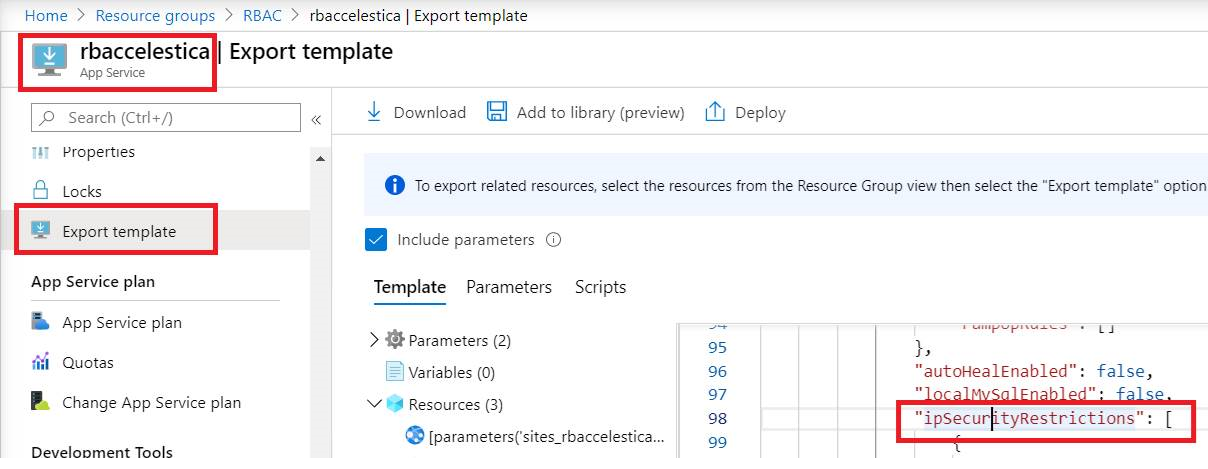
2. If you search for “Microsoft.Web/sites/config” in Azure resource provider operations, you will find the operations below. To prevent users from editing this configuration through this role, exclude the write and delete permissions.
| Action | microsoft.web/sites/config/read | Get Web App configuration settings |
| Action | microsoft.web/sites/config/list/action | List Web App's security sensitive settings, such as publishing credentials, app settings and connection strings |
| Action | microsoft.web/sites/config/write | Update Web App's configuration settings |
| Action | microsoft.web/sites/config/delete | Delete Web Apps Config |
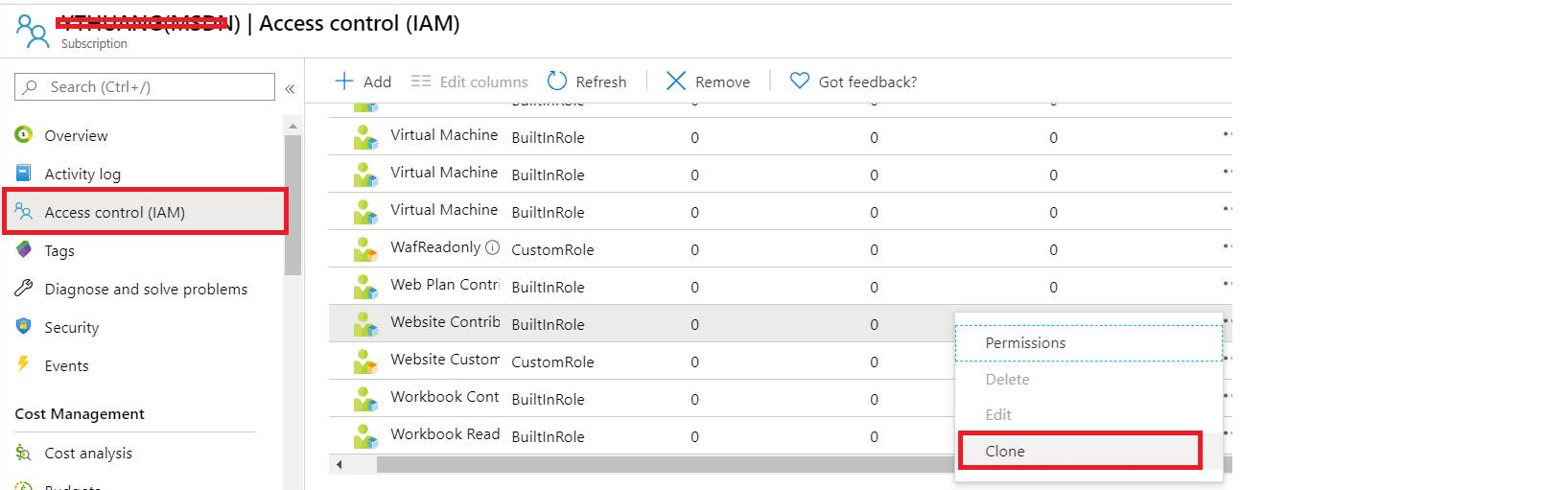
3. Now we can clone and customize a role. From Subscription -> Access control -> Roles, find Website Contributor, right-click it, and choose Clone.
4. Follow the wizard and add the two operations shown below to NotActions.

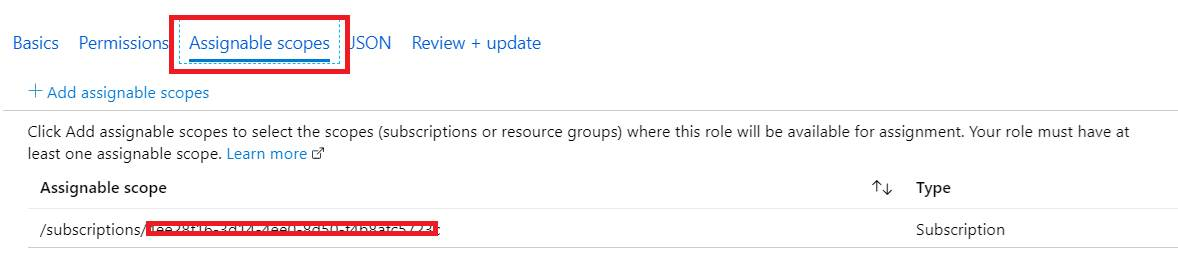
5. From Assignable scopes, please make sure the scope is targeted to your subscription.
6. Once the customized role is created, assign it to the users or groups whose access you want to limit.
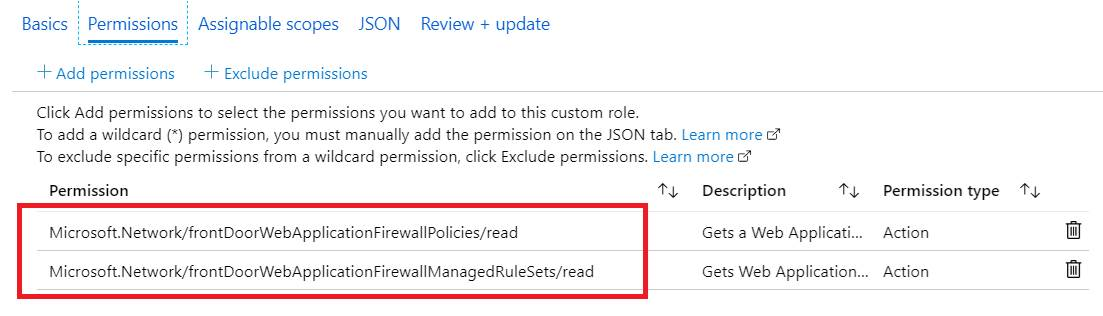
If no existing role fits—for example, if we want to allow a user to disable the WAF in Front Door—the methodology is the same, except that we create a role from scratch:
1. Subscription-> Access control->Roles, Add custom role
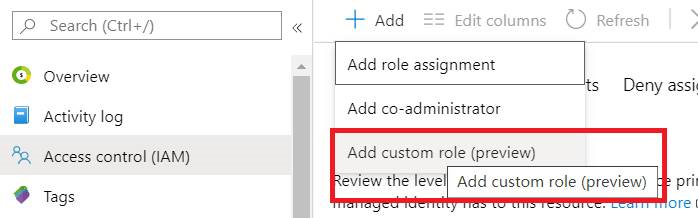
2. From Permissions, add the operations shown below to Actions, make sure the scope still targets the subscription, and assign the customized role to the user or group.