Cloud Native C02
How Do I Host This Website in an Azure K8S Cluster
Explains how I built my website on an Azure-hosted K8S cluster.

In this dispatch 18 sections
Note (May 2026): This article reflects the AKS-Engine, Helm v2/Tiller, older cert-manager, and
extensions/v1beta1Ingress APIs used around Kubernetes 1.10-1.13. Modern Kubernetes clusters generally use Helm v3, newer cert-manager APIs,networking.k8s.io/v1Ingress, and managed AKS or Cluster API-style provisioning. Use this post as historical context and update the manifests before applying them today.
0 Background
This website is hosted in a Kubernetes cluster with three Azure B2S VMs. In the following sections, I am going to explain how I built the whole cluster and how to leverage Kubernetes to provide the infrastructure support. aks-engine, Helm, cert-manager, and the nginx-ingress controller will be discussed here.
1 Set Up a K8S Cluster with AKS-Engine
Recently, Microsoft started a new project called AKS-Engine to replace its old project ACS-Engine. Basically, AKS-Engine is the successor to ACS-Engine. Microsoft migrated all ACS-Engine code to AKS-Engine and provides updated support for new K8S deployments. So I decided to use AKS-Engine to deploy my K8S cluster.
The latest AKS-Engine can be downloaded from here. Download and extract aks-engine so we can use it to create a K8S cluster. The complete deployment guide can be found at this link.
1.1 Define a template
To create a cluster, we need a template file that will be used in the aks-engine command line. I’d like to try the newest K8S release, so I set orchestratorRelease to 1.13.1. By default, aks-engine will use Azure advanced networking as the network plugin. Here is my template k8s113.json.
{
  "apiVersion": "vlabs",
  "properties": {
    "orchestratorProfile": {
      "orchestratorType": "Kubernetes",
      "orchestratorRelease": "1.13.1"
    },
    "masterProfile": {
      "count": 1,
      "dnsPrefix": "<REPLACE_WITH_A_DNS_PREFIX>",
      "vmSize": "Standard_B2s"
    },
    "agentPoolProfiles": [
      {
        "name": "agentpool1",
        "count": 2,
        "vmSize": "Standard_B2s",
        "availabilityProfile": "AvailabilitySet"
      }
    ],
    "linuxProfile": {
      "adminUsername": "<REPLACE_WITH_ADMIN_USER_NAME>",
      "ssh": {
        "publicKeys": [
          {
            "keyData": "<SSH_PUBLIC_KEY_DATA>"
          }
        ]
      }
    },
    "servicePrincipalProfile": {
      "clientId": "<appId>",
      "secret": "<password>"
    }
  }
}
Note: clientID and secret map to a service principal’s appId and password. If you don’t have a service principal yet, you can create one by using the following commands.
az login
az account set --subscription="${SUBSCRIPTION_ID}"
az ad sp create-for-rbac --role="Contributor" --scopes="/subscriptions/${SUBSCRIPTION_ID}"
1.2 Deploy K8S cluster
Using aks-engine to deploy a K8S cluster is pretty simple. Just run the command below.
aks-engine deploy --resource-group "AKSEngine" --location "<ANY_LOCATION>" --subscription-id "<AZURE_SUBSCRIPTION_ID>" --api-model "k8s113.json"Note: you can use az account list-locations to get a complete list of locations.
2 Deploy website
This website is based on Ghost, the professional publishing platform. To publish this website to the internet, we also need a public IP address as well as an SSL certificate. So I am going to deploy and use the following applications in the K8S cluster.
- cert-manager (to request an SSL certificate)
- nginx-ingress controller (expose website to internet)
- kubeapps (web based helm UI)
- ghost (my website)
In the K8S world, Helm can help manage Kubernetes applications, and there are plenty of charts available, so I am going to use Helm to deploy these applications.
Helm can be downloaded and installed from here. Helm comes with two components: the client tool helm and the K8S server component Tiller. By default, aks-engine already has Tiller deployed in the kube-system namespace. However, to avoid error messages like “incompatible versions client[v2.x.x] server[v2.x.x]”, it’s always a good practice to run helm init --upgrade to upgrade the server component.
2.1 Deploy cert-manager
We are going to use cert-manager with Let’s Encrypt to request a free SSL certificate for our website. Installing cert-manager is very simple with Helm; just run:
helm install stable/cert-manager --name arracs-cert-manager --namespace kube-system --set ingressShim.defaultIssuerName=letsencrypt-prod --set ingressShim.defaultIssuerKind=ClusterIssuerNote: cert-manager can be configured to automatically provision TLS certificates for Ingress resources via annotations on your Ingresses, refer to here, this feature is enabled by default since cert-manager v0.2.2.
If you would also like to use the old kube-lego kubernetes.io/tls-acme: “true” annotation for fully automated TLS, you will need to configure a default Issuer when deploying cert-manager. This can be done by adding the following —set when deploying using Helm:
—set ingressShim.defaultIssuerName=letsencrypt-prod
—set ingressShim.defaultIssuerKind=ClusterIssuer
The command above basically means that if an Ingress object is created, cert-manager will use the letsencrypt-prod ClusterIssuer to automatically create a certificate for that Ingress object. For all Ingress objects with the kubernetes.io/tls-acme: “true” annotation, it uses the ClusterIssuer we specified in “—set” to create the certificate.
As we use the letsencrypt-prod ClusterIssuer, we also need to define it so that cert-manager knows where to request certificates. The letsencrypt-issuer.yaml below defines two ClusterIssuers: one is for letsencrypt-prod (used in our production website), and the other is for letsencrypt-staging (used for testing).
# letsencrypt-issuer.yaml
apiVersion: certmanager.k8s.io/v1alpha1
kind: Issuer
metadata:
  name: letsencrypt-prod
  namespace: kube-system
spec:
  acme:
    # Email address used for ACME registration
    email: huangyingting@outlook.com
    http01: {}
    # Name of a secret used to store the ACME account private key
    privateKeySecretRef:
      key: ""
      name: letsencrypt-prod
    server: https://acme-v01.api.letsencrypt.org/directory
---
apiVersion: certmanager.k8s.io/v1alpha1
kind: Issuer
metadata:
  name: letsencrypt-staging
  namespace: kube-system
spec:
  acme:
    server: https://acme-staging.api.letsencrypt.org/directory
    # Email address used for ACME registration
    email: huangyingting@outlook.com
    # Name of a secret used to store the ACME account private key
    privateKeySecretRef:
      name: letsencrypt-staging
    http01: {}
Run the command below to apply letsencrypt-issuer.yaml to the K8S cluster.
#kubectl apply -f letsencrypt-issuer.yaml
issuer.certmanager.k8s.io/letsencrypt-prod created
issuer.certmanager.k8s.io/letsencrypt-staging created
2.2 Deploy nginx-ingress controller
We need an ingress controller to expose our service to the internet. We will use nginx-ingress. Here is the command to install this ingress controller.
helm install stable/nginx-ingress --name arracs-nginx-ingress --namespace kube-system --set controller.replicaCount=2The nginx-ingress controller will create a LoadBalancer with a public IP. From the output below,
#kubectl get svc --all-namespaces
NAMESPACE     NAME                                   TYPE           CLUSTER-IP     EXTERNAL-IP   PORT(S)                      AGE
default       kubernetes                             ClusterIP      10.0.0.1       <none>        443/TCP                      20m
kube-system   arracs-nginx-ingress-controller        LoadBalancer   10.0.130.113   <pending>     80:31726/TCP,443:32222/TCP   2m
kube-system   arracs-nginx-ingress-default-backend   ClusterIP      10.0.88.109    <none>        80/TCP                       2m
kube-system   heapster                               ClusterIP      10.0.78.216    <none>        80/TCP                       20m
kube-system   kube-dns                               ClusterIP      10.0.0.10      <none>        53/UDP,53/TCP                20m
kube-system   kubernetes-dashboard                   NodePort       10.0.121.103   <none>        443:30909/TCP                20m
kube-system   metrics-server                         ClusterIP      10.0.117.153   <none>        443/TCP                      20m
kube-system   tiller-deploy                          ClusterIP      10.0.217.230   <none>        44134/TCP                    20m
2.3 Deploy kubeapps
Kubeapps is a web-based UI for deploying and managing applications in Kubernetes clusters. To experience web-based deployment, I installed kubeapps with the steps below.
2.3.1 Add bitnami helm charts repo
helm repo add bitnami https://charts.bitnami.com/bitnami
"bitnami" has been added to your repositories
2.3.2 Install kubeapps
helm install --name kubeapps --namespace kubeapps bitnami/kubeapps2.3.3 Create token to access kubeapps
kubectl create serviceaccount kubeapps-operator
serviceaccount/kubeapps-operator created
kubectl create clusterrolebinding kubeapps-operator --clusterrole=cluster-admin --serviceaccount=default:kubeapps-operator
clusterrolebinding.rbac.authorization.k8s.io/kubeapps-operator created2.3.4 Access kubeapps
The default deployment didn’t create LoadBalancer/Ingress, so I used kubectl port-forward to access kubeapps’ dashboard
kubeapps-internal-dashboard is the service we are going to access
kubectl get svc -n=kubeapps
NAME                             TYPE        CLUSTER-IP     EXTERNAL-IP   PORT(S)     AGE
kubeapps                         ClusterIP   10.0.3.152     <none>        80/TCP      22h
kubeapps-internal-chartsvc       ClusterIP   10.0.77.63     <none>        8080/TCP    22h
kubeapps-internal-dashboard      ClusterIP   10.0.9.135     <none>        8080/TCP    22h
kubeapps-internal-tiller-proxy   ClusterIP   10.0.95.205    <none>        8080/TCP    22h
kubeapps-mongodb                 ClusterIP   10.0.170.238   <none>        27017/TCP   22h
Running the commands below will create port forwarding to the kubeapps dashboard. Accessing localhost:8080 will redirect to kubeapps-internal-dashboard.
kubectl port-forward -n kubeapps svc/kubeapps-internal-dashboard 8080:8080
Forwarding from 127.0.0.1:8080 -> 8080
Forwarding from [::1]:8080 -> 8080
Now, we can access kubeapps from a browser by visiting http://127.0.0.1:8080, but we still need an API token to log in. Use the command below to retrieve the API token created in step 2.3.3.
kubectl get secret $(kubectl get serviceaccount kubeapps-operator -o jsonpath='{.secrets[].name}') -o jsonpath='{.data.token}' | base64 --decode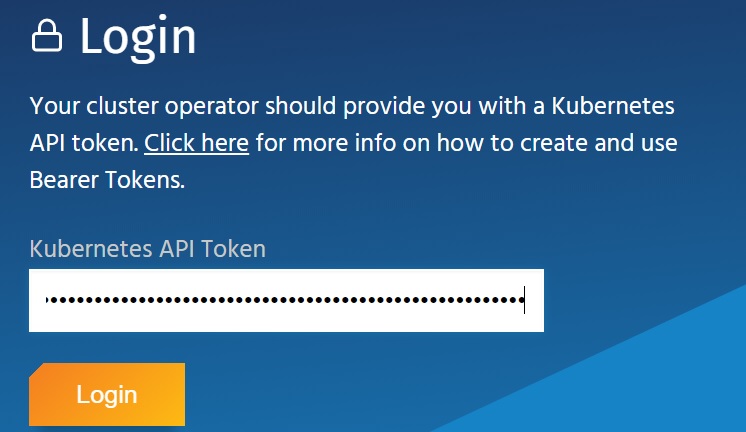
2.4 Deploy ghost
From command window, run
kubectl create namespace ghostto create a namespace “ghost” in order to deploy all Ghost-related applications into it.
After logging into the kubeapps web console, choose NAMESPACE as “ghost”, then from the “Catalog” tab, search for Ghost and click the stable version.
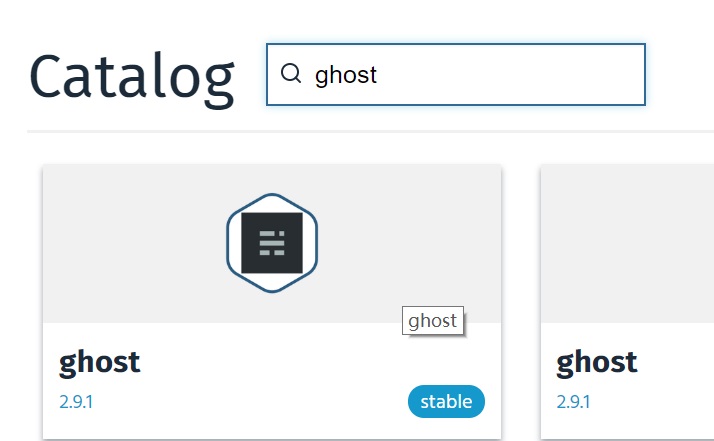
Then click “Deploy using Helm”. From the deployment page, name the deployment and set the values below, then click “Submit” to deploy.
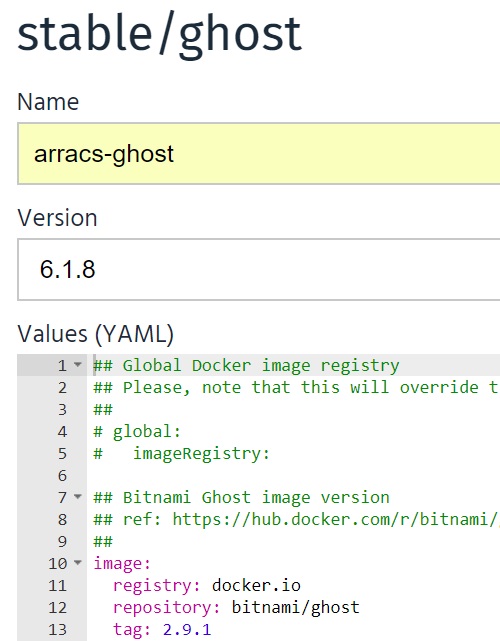
## Bitnami Ghost image version
## ref: https://hub.docker.com/r/bitnami/ghost/tags/
##
image:
  registry: docker.io
  repository: bitnami/ghost
  tag: 2.9.1
  ## Specify a imagePullPolicy
  ## Defaults to 'Always' if image tag is 'latest', else set to 'IfNotPresent'
  ## ref: http://kubernetes.io/docs/user-guide/images/#pre-pulling-images
  ##
  pullPolicy: IfNotPresent
  ## Optionally specify an array of imagePullSecrets.
  ## Secrets must be manually created in the namespace.
  ## ref: https://kubernetes.io/docs/tasks/configure-pod-container/pull-image-private-registry/
  ##
  # pullSecrets:
  #   - myRegistrKeySecretName

##
## Init containers parameters:
## volumePermissions: Change the owner of the persist volume mountpoint to RunAsUser:fsGroup
##
volumePermissions:
  image:
    registry: docker.io
    repository: bitnami/minideb
    tag: latest
    pullPolicy: Always

## Ghost host and path to create application URLs
## ref: https://github.com/bitnami/bitnami-docker-ghost#configuration
##
ghostHost: msazure.club
ghostPath: /

## User of the application
## ref: https://github.com/bitnami/bitnami-docker-ghost#configuration
##
ghostUsername: <REPLACE_WITH_USERNAME>

## Application password
## Defaults to a random 10-character alphanumeric string if not set
## ref: https://github.com/bitnami/bitnami-docker-ghost#configuration
##
ghostPassword: <REPLACE_WITH_PASSWORD>

## Admin email
## ref: https://github.com/bitnami/bitnami-docker-ghost#configuration
##
ghostEmail: <REPLACE_WITH_ADMIN_EMAIL>

## Ghost Blog name
## ref: https://github.com/bitnami/bitnami-docker-ghost#environment-variables
##
ghostBlogTitle: msazure

## Set to `yes` to allow the container to be started with blank passwords
## ref: https://github.com/bitnami/bitnami-docker-wordpress#environment-variables
allowEmptyPassword: "yes"

## SMTP mail delivery configuration, don't leave it empty, otherwise the deployment will fail.
## ref: https://github.com/bitnami/bitnami-docker-redmine/#smtp-configuration
##
smtpHost: <REPLACE_WITH_SMTP_SERVER>
smtpPort: <REPLACE_WIHT_SMTP_PORT>
smtpUser: <REPLACE_WITH_SMTP_USER>
smtpPassword: <REPLACE_WITH_SMTP_PASSWORD>
smtpService: <REPLACE_WITH_STMP_SERVICE>

##
## MariaDB chart configuration
##
## https://github.com/helm/charts/blob/master/stable/mariadb/values.yaml
##
mariadb:
  ## Whether to deploy a mariadb server to satisfy the applications database requirements. To use an external database set this to false and configure the externalDatabase parameters
  enabled: true
  ## Disable MariaDB replication
  replication:
    enabled: false

  ## Create a database and a database user
  ## ref: https://github.com/bitnami/bitnami-docker-mariadb/blob/master/README.md#creating-a-database-user-on-first-run
  ##
  db:
    name: db_ghost
    user: usr_ghost
    ## If the password is not specified, mariadb will generates a random password
    ##
    password: <REPLACE_WITH_PASWORD>

  ## MariaDB admin password
  ## ref: https://github.com/bitnami/bitnami-docker-mariadb/blob/master/README.md#setting-the-root-password-on-first-run
  ##
  rootUser:
    password: <REPLACE_WIHT_PASSWORD>

  ## Enable persistence using Persistent Volume Claims
  ## ref: http://kubernetes.io/docs/user-guide/persistent-volumes/
  ##
  master:
    persistence:
      enabled: true
      ## mariadb data Persistent Volume Storage Class
      ## If defined, storageClassName: <storageClass>
      ## If set to "-", storageClassName: "", which disables dynamic provisioning
      ## If undefined (the default) or set to null, no storageClassName spec is
      ##   set, choosing the default provisioner.  (gp2 on AWS, standard on
      ##   GKE, AWS & OpenStack)
      ##
      # storageClass: "-"
      accessMode: ReadWriteOnce
      size: 8Gi

## As ingress will be used below, just use ClusterIP for service
##
service:
  type: ClusterIP
  # HTTP Port
  port: 80

## Pod Security Context
## ref: https://kubernetes.io/docs/tasks/configure-pod-container/security-context/
##
securityContext:
  enabled: true
  fsGroup: 1001
  runAsUser: 1001

## Enable persistence using Persistent Volume Claims
## ref: http://kubernetes.io/docs/user-guide/persistent-volumes/
##
persistence:
  enabled: true
  ## ghost data Persistent Volume Storage Class
  ## If defined, storageClassName: <storageClass>
  ## If set to "-", storageClassName: "", which disables dynamic provisioning
  ## If undefined (the default) or set to null, no storageClassName spec is
  ##   set, choosing the default provisioner.  (gp2 on AWS, standard on
  ##   GKE, AWS & OpenStack)
  ##
  # storageClass: "-"
  accessMode: ReadWriteOnce
  size: 8Gi
  path: /bitnami

## Configure resource requests and limits
## ref: http://kubernetes.io/docs/user-guide/compute-resources/
##
resources:
  requests:
    memory: 512Mi
    cpu: 300m

## Configure the ingress resource that allows you to access the
## Ghost installation. Set up the URL
## ref: http://kubernetes.io/docs/user-guide/ingress/
##
ingress:
  ## Set to true to enable ingress record generation
  enabled: true

  ## The list of hostnames to be covered with this ingress record.
  ## Most likely this will be just one host, but in the event more hosts are needed, this is an array
  hosts:
  - name: msazure.club

    ## Set this to true in order to enable TLS on the ingress record
    ## A side effect of this will be that the backend ghost service will be connected at port 443
    tls: true

    ## Set this to true in order to add the corresponding annotations for cert-manager
    certManager: true

    ## If TLS is set to true, you must declare what secret will store the key/certificate for TLS
    tlsSecret: msazure-club-tls

    ## Ingress annotations done as key:value pairs
    ## For a full list of possible ingress annotations, please see
    ## ref: https://github.com/kubernetes/ingress-nginx/blob/master/docs/annotations.md
    ##
    ## If tls is set to true, annotation ingress.kubernetes.io/secure-backends: "true" will automatically be set
    annotations:
      kubernetes.io/ingress.class: nginx
Some comments on the values above: since ingress is used, it will trigger cert-manager to request a certificate from Let’s Encrypt. The protocol being used is ACME. Let’s Encrypt will verify that you own the domain, which means you must point the DNS A record msazure.club to the ingress controller’s public IP; otherwise, the certificate request will fail. For more details, please refer to How It Works - Let’s Encrypt.
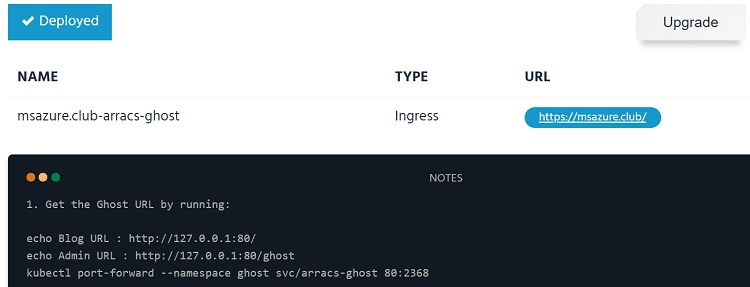
If the deployment goes well, kubeapps will eventually show “Deployed” like below
2.5 Visiting/tuning website
Once the deployment is finished, open a browser and access GHOST_URL/. It should render the website correctly.
As we use the nginx-ingress controller, by default it only allows uploading files up to 1MB. If the uploaded image size exceeds 1MB, Ghost will report “The image you uploaded was larger than the maximum file size your server allows.” Luckily, nginx ingress provides annotations for specific ingress objects to customize their behavior. We can use the “nginx.ingress.kubernetes.io/proxy-body-size” annotation to control nginx behavior.
I followed the steps below to modify the Ingress object:
2.5.1 List ingress object
kubectl get ing -n=ghost
NAME                        HOSTS          ADDRESS   PORTS     AGE
msazure.club-arracs-ghost   msazure.club             80, 443   22h
2.5.2 Modify ingress object msazure.club-arracs-ghost
kubectl edit ing msazure.club-arracs-ghost -n=ghostModify its definition to
# Please edit the object below. Lines beginning with a '#' will be ignored,
# and an empty file will abort the edit. If an error occurs while saving this file will be
# reopened with the relevant failures.
#
apiVersion: extensions/v1beta1
kind: Ingress
metadata:
  annotations:
    kubernetes.io/ingress.class: nginx
    kubernetes.io/tls-acme: "true"
    nginx.ingress.kubernetes.io/proxy-body-size: 10m
  creationTimestamp: "2018-12-22T14:05:28Z"
...
When the “nginx.ingress.kubernetes.io/proxy-body-size” annotation is added, the configuration change will be applied to nginx very soon. To verify it, we can run:
kubectl get pod -n=kube-system | grep nginx-ingress-controller
arracs-nginx-ingress-controller-8b955dc4c-5mnsh        1/1       Running   0          10h
arracs-nginx-ingress-controller-8b955dc4c-ll5l8        1/1       Running   0          10h
kubectl exec -it -n=kube-system arracs-nginx-ingress-controller-8b955dc4c-5mnsh -- cat /etc/nginx/nginx.conf | grep client_max_body_size
client_max_body_size 10m;
client_max_body_size 10m;2.6 Up and Running
With the configurations above, my website GHOST_URL/ should be up and running now :).
3 Upgrade K8S cluster
For some unknown reason, the Kubernetes cluster version was not at 1.13.1. kubectl version showed it was at version 1.10.12, so I used the command below to upgrade my cluster to version 1.11.6, then 1.12.4, and finally 1.13.1.
aks-engine upgrade --subscription-id "REPLACE_WIHT_SUBSCRIPTION_ID" --deployment-dir ./_output/arracs --location <REPLACE_WITH_LOCATION> --resource-group AKSEngine --upgrade-version 1.11.6 --auth-method client_secret --client-id <REPLACE_WITH_CLIENT_ID> --client-secret <REPLACE_WITH_CLIENT_SECRET>Upgrading a cluster from aks-engine basically works in the following sequence.
- Delete the original master nodes and deploy new master nodes with the upgraded version.
- Drain agent nodes one by one, delete each agent node, and deploy an agent node with the upgraded version.
- During the upgrade, the cluster public IP address remains.
The whole upgrade process basically won’t interrupt the services running from the cluster, although there will be a short downtime window when pods are migrated from one node to another. For example, during the upgrade, I was still able to access my website.
4 Explore K8S concepts
4.1 Access kubernetes dashboard
By default, the ServiceAccount used by the dashboard does not have enough rights to access all resources. To solve the problem, we need to assign the cluster-admin role to it. Here is the command to do it.
kubectl create clusterrolebinding kubernetes-dashboard -n kube-system --clusterrole=cluster-admin --serviceaccount=kube-system:kubernetes-dashboardAfter that, use the command below to redirect traffic to the API server.
kubectl proxy --port 8080Then, from a browser, visit the URL below, and the Kubernetes dashboard should be accessible. http://localhost:8080/api/v1/namespaces/kube-system/services/https:kubernetes-dashboard:/proxy/
4.2 Services
The three Service types used here are ClusterIP, NodePort, and LoadBalancer. ExternalName is another type, but it is not used in this example.
kubectl get svc --all-namespaces
NAMESPACE     NAME                                   TYPE           CLUSTER-IP     EXTERNAL-IP     PORT(S)                      AGE
default       kubernetes                             ClusterIP      10.0.0.1       <none>          443/TCP                      2d23h
ghost         arracs-ghost                           ClusterIP      10.0.134.104   <none>          80/TCP                       7h4m
ghost         arracs-ghost-mariadb                   ClusterIP      10.0.35.211    <none>          3306/TCP                     7h4m
kube-system   arracs-nginx-ingress-controller        LoadBalancer   10.0.17.238    13.76.133.101   80:31289/TCP,443:31146/TCP   2d23h
kube-system   arracs-nginx-ingress-default-backend   ClusterIP      10.0.173.204   <none>          80/TCP                       2d23h
kube-system   heapster                               ClusterIP      10.0.16.142    <none>          80/TCP                       2d23h
kube-system   kube-dns                               ClusterIP      10.0.0.10      <none>          53/UDP,53/TCP                2d23h
kube-system   kubernetes-dashboard                   NodePort       10.0.100.128   <none>          443:31728/TCP                2d23h
kube-system   metrics-server                         ClusterIP      10.0.41.92     <none>          443/TCP                      2d23h
kube-system   tiller-deploy                          ClusterIP      10.0.202.135   <none>          44134/TCP                    2d23h
When accessing a Service, the traffic flow will be:
- ClusterIP:
<ClusterIP>:<Port> -> <Pod IP>:<TargetPort> - NodePort:
<NodeIP>:<NodePort> -> <Pod IP>:<TargetPort> - LoadBalancer:
<LBIP>:<LBPort> -> <Pod IP>:<TargetPort>
Specifically, LoadBalancer exposes the Service externally using a cloud provider’s load balancer. In Azure, if you check the setting of the load balancer’s public IP, you will see it is using “Floating IP”. When “Floating IP” is enabled, Azure will directly send packets to the agent node without modifying their SrcIP and DestIP.
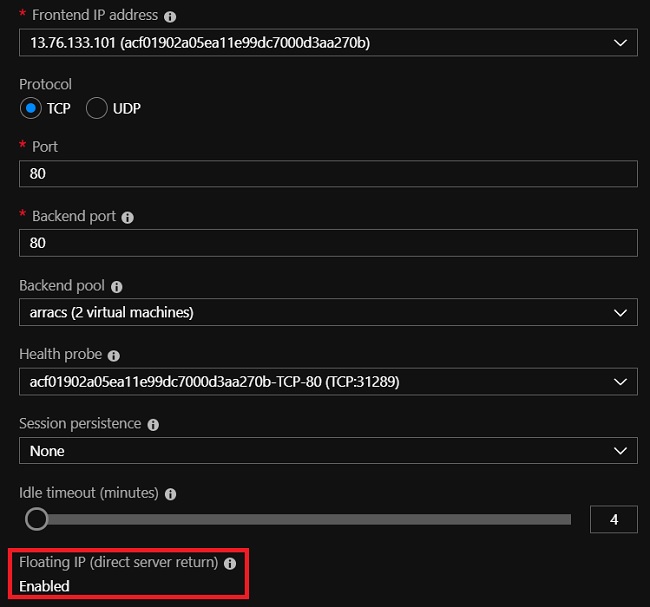
Inbound traffic’s destination IP (the load balancer’s public IP with floating IP enabled) will eventually be DNAT-ed to the Pod IP from the agent node (not by Azure) by Kubernetes. The purpose of using “Floating IP” is that Kubernetes needs the destination IP address information to associate it with the corresponding Service. Here is a sample of the iptables rules programmed for the load balancer in my K8S cluster. 13.76.133.101 is the load balancer’s public IP address, and the last rule is the DNAT rule.
...
-A KUBE-SERVICES -d 13.76.133.101/32 -p tcp -m comment --comment "kube-system/arracs-nginx-ingress-controller:https loadbalancer IP" -m tcp --dport 443 -j KUBE-FW-JORQ6NA4OOQ53UTX
...
-A KUBE-SVC-JORQ6NA4OOQ53UTX -m statistic --mode random --probability 0.50000000000 -j KUBE-SEP-P3VRGVWU3CDZJRKA
-A KUBE-SVC-JORQ6NA4OOQ53UTX -j KUBE-SEP-R524ZW4QEMUCZWEH
...
-A KUBE-SEP-P3VRGVWU3CDZJRKA -p tcp -m tcp -j DNAT --to-destination 10.240.0.42:443
4.3 PersistentVolume(PV) and PersistentVolumeClaim(PVC)
The detailed explanation of PV and PVC can be found here. Ghost Helm charts will deploy two PVCs, one for MariaDB (DB to store Ghost configuration) and one for Ghost itself (to store website data).
kubectl get pvc -n=ghost
NAME                          STATUS    VOLUME                                     CAPACITY   ACCESS MODES   STORAGECLASS   AGE
arracs-ghost                  Bound     pvc-a2d8532f-05f2-11e9-9dc7-000d3aa270bb   8Gi        RWO            default        1d
data-arracs-ghost-mariadb-0   Bound     pvc-a2ec9cbc-05f2-11e9-9dc7-000d3aa270bb   8Gi        RWO            default        1d
As this cluster uses Azure, the K8S cloud provider will create two disks in Azure.

And the disks are programmed to attach to the corresponding agent nodes where Pods claim to use them. For example, if we check the agent VM from the Azure portal, we can see it has a data disk attached.
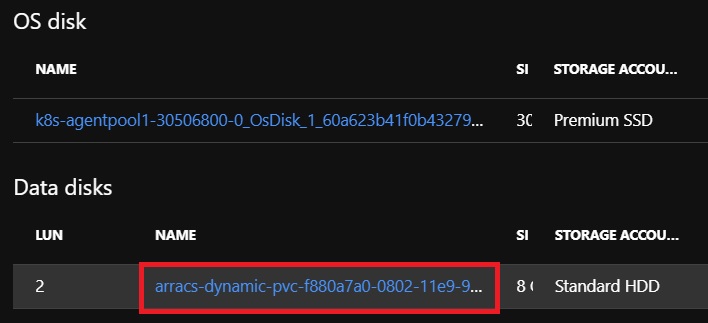
To check who is using the PVC, we can run
kubectl describe pvc arracs-ghost -n=ghost
Name:          arracs-ghost
Namespace:     ghost
StorageClass:  default
Status:        Bound
Volume:        pvc-a2d8532f-05f2-11e9-9dc7-000d3aa270bb
Labels:        app=arracs-ghost
               chart=ghost-6.1.8
               heritage=Tiller
               release=arracs-ghost
Annotations:   pv.kubernetes.io/bind-completed: yes
               pv.kubernetes.io/bound-by-controller: yes
               volume.beta.kubernetes.io/storage-provisioner: kubernetes.io/azure-disk
Finalizers:    [kubernetes.io/pvc-protection]
Capacity:      8Gi
Access Modes:  RWO
Events:        <none>
Mounted By:    arracs-ghost-6d8c65c6db-h45x2
PVC is mounted by a Pod, and data will persist in it. Even if the Pod restarts, the same configuration can be applied. For example, if we run kubectl delete pod arracs-ghost-6d8c65c6db-h45x2, the newly created Pod will still mount this PVC.
If PVC is bound to a StatefulSet, even if the whole StatefulSet is deleted, the PVC still remains. In our case, data-arracs-ghost-mariadb-0 is bound to StatefulSet arracs-ghost-mariadb, so even if I delete arracs-ghost-mariadb, PVC arracs-ghost-mariadb still remains.
kubectl describe StatefulSet arracs-ghost-mariadb -n=ghost
Name:               arracs-ghost-mariadb
Namespace:          ghost
CreationTimestamp:  Sat, 22 Dec 2018 22:05:28 +0800
Selector:           app=mariadb,component=master,release=arracs-ghost
Labels:             app=mariadb
                    chart=mariadb-5.2.5
                    component=master
                    heritage=Tiller
                    release=arracs-ghost
Annotations:        <none>
Replicas:           824638335384 desired | 1 total
Update Strategy:    RollingUpdate
Pods Status:        1 Running / 0 Waiting / 0 Succeeded / 0 Failed
Pod Template:
  Labels:  app=mariadb
           chart=mariadb-5.2.5
           component=master
           release=arracs-ghost
  Containers:
   mariadb:
    Image:      docker.io/bitnami/mariadb:10.1.37
    Port:       3306/TCP
    Host Port:  0/TCP
    Liveness:   exec [sh -c exec mysqladmin status -uroot -p$MARIADB_ROOT_PASSWORD] delay=120s timeout=1s period=10s #success=1 #failure=3
    Readiness:  exec [sh -c exec mysqladmin status -uroot -p$MARIADB_ROOT_PASSWORD] delay=30s timeout=1s period=10s #success=1 #failure=3
    Environment:
      MARIADB_ROOT_PASSWORD:  <set to the key 'mariadb-root-password' in secret 'arracs-ghost-mariadb'>  Optional: false
      MARIADB_USER:           usr_ghost
      MARIADB_PASSWORD:       <set to the key 'mariadb-password' in secret 'arracs-ghost-mariadb'>  Optional: false
      MARIADB_DATABASE:       db_ghost
    Mounts:
      /bitnami/mariadb from data (rw)
      /opt/bitnami/mariadb/conf/my.cnf from config (rw)
  Volumes:
   config:
    Type:      ConfigMap (a volume populated by a ConfigMap)
    Name:      arracs-ghost-mariadb
    Optional:  false
Volume Claims:
  Name:          data
  StorageClass:
  Labels:        app=mariadb
                 component=master
                 heritage=Tiller
                 release=arracs-ghost
  Annotations:   <none>
  Capacity:      8Gi
  Access Modes:  [ReadWriteOnce]
Events:          <none>
To delete it manually, we need to run kubectl delete pvc arracs-ghost-mariadb -n=ghost.
4.4 Jobs
If we run kubectl get pod -n=kubeapps we can see some pods’ STATUS are ‘Completed’. For example
NAME                                                          READY   STATUS      RESTARTS   AGE
apprepo-sync-bitnami-69xst-4c2sz                              0/1     Completed   2          4m56s
apprepo-sync-incubator-n99hl-4f2hh                            0/1     Completed   2          4m56s
apprepo-sync-stable-95879-tqp4t                               0/1     Completed   2          4m56s
apprepo-sync-svc-cat-mdmhn-zgcbd                              0/1     Completed   2          4m56s
Those Pods are actually created by Jobs. Refer to Jobs - Run to Completion.
A job creates one or more pods and ensures that a specified number of them successfully terminate
Pick one of the Pods in ‘Completed’ status and check Controlled By: Job/apprepo-sync-bitnami-69xst; it means this Pod is created by a Job.
kubectl describe pod apprepo-sync-bitnami-69xst-4c2sz  -n=kubeapps
Name:               apprepo-sync-bitnami-69xst-4c2sz
Namespace:          kubeapps
Priority:           0
PriorityClassName:  <none>
Node:               k8s-agentpool1-30506800-1/10.240.0.34
Start Time:         Tue, 25 Dec 2018 14:34:22 +0800
Labels:             apprepositories.kubeapps.com/repo-name=bitnami
                    controller-uid=1d6e98dd-080f-11e9-9002-000d3aa06791
                    job-name=apprepo-sync-bitnami-69xst
Annotations:        <none>
Status:             Succeeded
IP:                 10.240.0.81
Controlled By:      Job/apprepo-sync-bitnami-69xst
...
The system currently has below Jobs defined.
kubectl get job -n=kubeapps
NAME                           COMPLETIONS   DURATION   AGE
apprepo-sync-bitnami-69xst     1/1           2m         9m48s
apprepo-sync-incubator-n99hl   1/1           107s       9m48s
apprepo-sync-stable-95879      1/1           4m19s      9m48s
apprepo-sync-svc-cat-mdmhn     1/1           107s       9m48s